Holaa! New post, new topic…. What am I bringing this time? A learning roadmap for git.
This is for those who want to contribute to open source or collaborate on projects — learning the very basics of this essential tool is where it all starts, and that tool is git.
This post is like a curriculum, covering everything from scratch to advanced, and also includes some exercises for practice. So, tighten your seatbelt — we are about to take off!
Here is full overview for this curriculum:
Phase 1 - Fundamentals
-What Git is -repos -commit -working tree -staging -branches
Goal : Understand Git’s mental model before touching a command
Phase 2 - Daily Development Workflow
-Init -clone -add -commit -log -diff -stash -branch -merge
Goal : survive and thrive in day-to-day Git usage
Phase 3 - Remote Collaboration
-remote -origin vs upstream -fetch -pull -push -forks -PRs
Goal: contribute to projects on Github/ GitLab confidently
Phase 4 - Intermediate Git
-cherry-pick -reset -revert -reflog -tags -interactive rebase
Goal: rewrite history cleanly, recover from mistake
Phase 5 - Advanced Git
-bisect -worktrees -submodules -hooks -Git internals
Goal: understand from the inside out
Phase 1
Lesson 1: What is Git, and Why Does It Exist?
Before you ever type a single Git command, you need to understand the problem Git was built to solve. If you understand the problem deeply, every Git concept will make intuitive sense.
The Problem: Tracking Change Over Time
Imagine you’re writing a research paper. You start with essay.docx. A week later you’re not sure about your changes, so you save essay_v2.docx. Then essay_final.docx. Then essay_FINAL_actual.docx. Then your friend edits it and sends back essay_final_Johns_edits.docx.
You’ve just invented a terrible, manual version control system.
Now imagine this — but with thousands of files, dozens of people, working simultaneously, on code where a single wrong character can break everything.
This is the problem that version control systems (VCS) were built to solve.
A Brief History (Why Git Specifically)
Before Git, the most popular VCS was called SVN (Subversion). It had a critical flaw: there was one central server. If it went down, nobody could work. If it got corrupted, history was gone.
In 2005, the Linux kernel project — one of the largest collaborative software projects in human history — lost access to their VCS tool (BitKeeper) due to a licensing dispute. Linus Torvalds, the creator of Linux, sat down and wrote a new one in about 10 days.
His design goals were:
- Speed
- Simple design
- Strong support for non-linear development (thousands of parallel branches)
- Fully distributed — every copy is a complete backup
- Able to handle projects the scale of the Linux kernel
That tool was Git.
The Core Mental Model: A Time Machine for Your Project
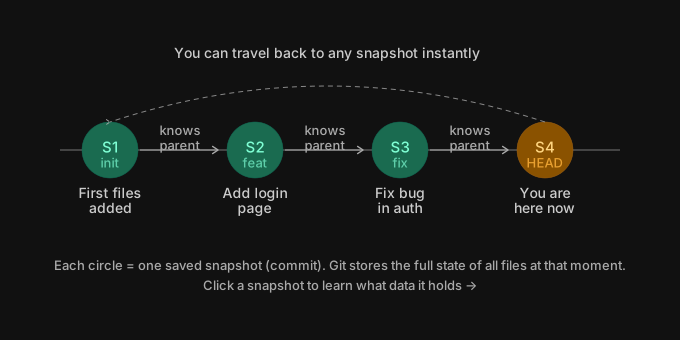
The key insight: Git doesn’t save “what changed” like a diff — it saves a complete snapshot of every file at that moment in time. (It’s clever about not duplicating identical files, but conceptually: each commit is a full photograph of your project.)
Each snapshot knows which snapshot came before it. This creates a chain. That chain is your project’s history.
What Git Is (Precisely)
Git is a distributed version control system. Let’s break that down:
- Version control — it tracks every change to every file, forever, with the ability to go back
- Distributed — every person who has a copy of the project has the entire history, not just the latest version. There is no single point of failure. Compare this to Google Docs, which is centralised — if Google’s servers go down, you can’t work. With Git, you can work completely offline and sync later.
What Git Is NOT
This is important, because people confuse these constantly:
- Git ≠ GitHub. Git is the tool. GitHub is a website that hosts Git repositories and adds social/collaboration features on top. GitHub could disappear tomorrow and Git would still exist. Others like GitLab, Bitbucket, and Codeberg also host Git repos.
- Git ≠ a backup system. Though it functions like one, its purpose is collaborative history tracking, not file backup.
- Git ≠ automatic. Git only saves what you explicitly tell it to save, when you tell it to.
✅ Exercises — Complete These Before We Move On
These require no Git installation yet. They’re about building your mental model.
Exercise 1.1 — Identify the problem in your own words. Without looking at notes, write 2–3 sentences answering: “What problem does Git solve, and why is it better than saving files manually?” Post your answer here.
Exercise 1.2 — Git vs GitHub. A classmate says: “I’m going to upload my project to Git.” What’s wrong with that sentence? Correct it.
Exercise 1.3 — The snapshot model. If Git stores snapshots, and you have 500 commits, and each snapshot contains the full state of 50 files — does Git store 25,000 copies of files? What’s the flaw in that reasoning? (Think about it — I’ll explain after you answer.)
Lesson 2: The Repository, Working Tree, and Staging Area
This is the most important conceptual lesson in all of Git. Developers who struggle with Git for years usually have a fuzzy picture of what you’re about to learn. Get this right and everything else clicks.
The Three Zones of Git
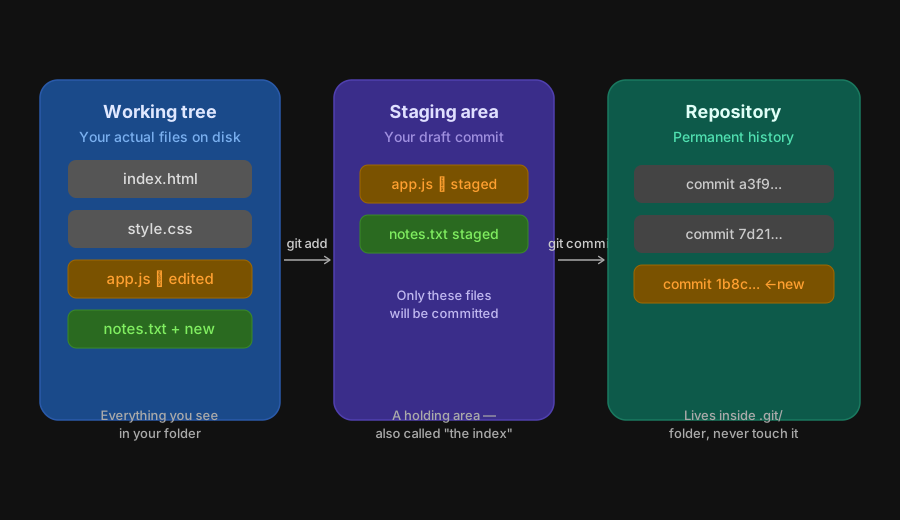
At any moment when working with Git, your files exist in one of three distinct places. Understanding these three zones is the foundation of everything.
Zone 1 — The Working Tree
This is simply your project folder — every file and subfolder you can see and edit on your computer. When you open a file in VS Code and type, you’re working in the working tree. Git can see that the file changed, but it has not recorded anything yet.
Think of it as your desk — messy, in progress, real work happening.
Zone 2 — The Staging Area (also called “the Index”)
This is the most misunderstood concept in Git. There is no equivalent in most other tools.
The staging area is a waiting room between your working tree and the repository. You explicitly place changed files here using git add. It holds exactly what your next commit will contain.
Why does this exist? Because you might change 10 files but only want to save 3 of them in this commit. The staging area lets you compose a precise, meaningful snapshot — not just “everything I changed today.”
Think of it as your draft — you’re deciding what goes into the next photograph.
Zone 3 — The Repository
This lives inside a hidden folder called .git/ at the root of your project. It contains the entire history of every commit ever made. You never edit this folder manually. Git manages it entirely.
Think of it as your photo album — permanent, organised, safe.
The .git/ folder
When you run git init, Git creates one hidden folder: .git/. This single folder is the repository. If you delete it, you lose all history. If you copy it to another machine, you have the entire project history.
my-project/
├── .git/          ← the entire repository lives here
├── index.html     ← working tree
├── style.css      ← working tree
└── app.js         ← working tree
Common Mistakes at This Stage
Confusing “saved” with “committed.” Pressing Ctrl+S in your editor saves to the working tree. That is completely invisible to Git. Only git commit saves to the repository.
Skipping the staging area. Beginners often want to skip straight from editing to committing. Resist this. The staging area is one of Git’s most powerful features — you’ll appreciate it enormously in Phase 3 when crafting clean PRs.
Panicking about .git/. Never manually edit or delete anything in .git/. Just know it exists and what it is.
✅ Exercises — Do These Now
You’ll need Git installed. Check with git --version in your terminal. If not installed, get it at git-scm.com.
Exercise 2.1 — Create a real repository.
mkdir my-first-repo
cd my-first-repo
git init
ls -la
Report back: what do you see after ls -la? What is the .git folder?
Exercise 2.2 — Observe the three zones.
echo "Hello, Git" > hello.txt
git status
Report back: what does git status say about hello.txt? Which zone is it currently in?
Exercise 2.3 — Move a file to staging.
git add hello.txt
git status
Report back: what changed in the git status output? What zone is hello.txt in now?
Exercise 2.4 — Conceptual question (no commands).
You edit login.js and dashboard.js. You want to commit only the login work, leaving dashboard for later. Which zone do you use to control this, and how would you do it?
Lesson 3 : Your First Commit - What a Commit Really Is
You know the three zones. Now we go deep on the most fundamental unit in all of Git : the commit. Most people think a commit is just “saving your work.” It’s far more than that.
What a Commit Actually Contains
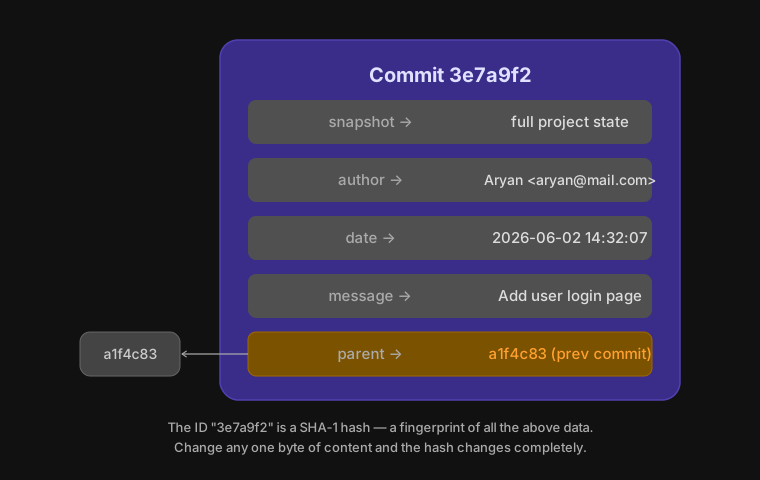
Every commit is a permanent record that contains five things:
The Hash — Git’s Fingerprint System
Every commit gets a unique ID called a SHA-1 hash — a 40-character string like 3e7a9f2d1c8b.... This is computed from the contents of the commit itself: the snapshot, the author, the date, the message, and the parent’s hash.
This has a profound consequence: you cannot change history silently. If you alter even one character in any past commit, its hash changes — and so does every commit after it. Git detects this instantly. This is why Git history is trustworthy.
In practice you only need the first 7 characters: 3e7a9f2 is enough for Git to identify it uniquely in most projects.
The Parent Pointer — How History is a Chain
Every commit (except the very first) points to its parent. This is what creates the timeline you saw in Lesson 1. Git can reconstruct your entire history by following parent pointers backward from the newest commit.
This also means: branches are incredibly cheap in Git. A branch is nothing more than a label that points to a commit. Moving a branch label costs almost nothing. More on this in Lesson 4.
Writing Good Commit Messages
A commit message is a letter to your future self and your collaborators. In open source, this matters enormously — maintainers of projects like the Linux kernel or CPython will reject commits with poor messages, no matter how good the code is.
Commit messages exist to tell you what changed and why — even months later. That’s why they should be written in imperative mood, meaning write it like a command. Not "Fixed the bug" or "Fixes the bug" — write "Fix null pointer in login handler". Clean, direct, unambiguous.
This isn’t just a style preference either — it’s how Git itself writes messages internally: "Merge branch...", "Revert commit...". You’re simply following the same language the tool already speaks.
Your First Commit — Commands
# Tell Git who you are (one-time setup)
git config --global user.name "Your Name"
git config --global user.email "you@example.com"

# Make a commit from what's in the staging area
git commit -m "Add hello.txt greeting file"

# View the commit you just made
git log
git log shows you the full hash, author, date, and message of every commit. Press q to exit.
✅ Exercises
Exercise 3.1 — Configure Git and make your first commit.
git config --global user.name "Your Name"
git config --global user.email "you@example.com"
git commit -m "Add hello.txt greeting file"
Report back: what does the output say? (It will show you the short hash and your message.)
Exercise 3.2 — View your history.
git log
Report back: what is the first 7 characters of your commit hash?
Exercise 3.3 — Make a second commit.
echo "Learning Git properly" >> hello.txt
git add hello.txt
git commit -m "Expand greeting with learning note"
git log
Report back: how many commits do you see now? What does the parent relationship look like in the log?
Exercise 3.4 — Commit message quiz. Classify each message as good or bad, and briefly say why:
Update stuffFix infinite loop in search indexerjune 2 changesRemove unused CSS variables from dashboard
Lesson 4: Branches
This is where Git becomes genuinely revolutionary. Branches are the reason Git won against every competing version control system. Once you truly understand what a branch is, you’ll understand why open source development at scale is even possible.
The Problem Branches Solve
Imagine you’re working on a web app. The live version is stable and users depend on it. You need to build a new feature — but it’ll take two weeks and the code will be messy while in progress. Meanwhile a critical security bug is found in the live version that needs fixing today.
Without branches: chaos. You can’t fix the bug without touching your half-finished feature code.
With branches: you work on the feature in complete isolation. The bug fix happens on a separate line of history. They never interfere with each other. When both are ready, you merge them in.
What a Branch Actually Is
Here is the mental model most people never get clearly:
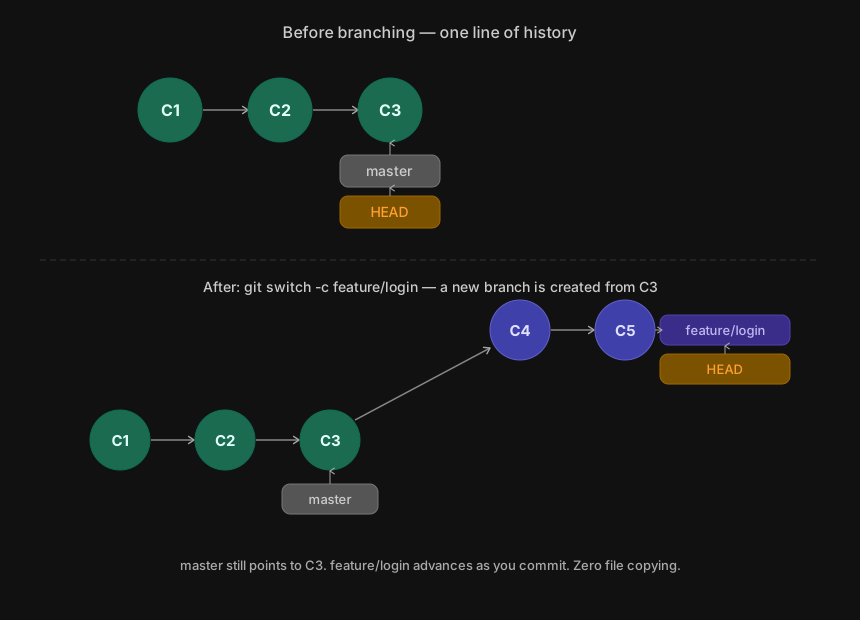
A branch is just a label — a pointer to a single commit.
That’s it. It’s not a copy of your files. It’s not a separate folder. It is a text file containing a 40-character hash.
When you make a new commit on a branch, the label moves forward to point at the new commit. The old commits don’t move — they’re permanent and immutable.
HEAD — Where You Are Right Now
HEAD is a special pointer that answers one question: which commit am I currently looking at?
Usually HEAD points to a branch, and that branch points to a commit. When you make a new commit, the branch label moves forward — and HEAD moves with it because HEAD points to the branch.
In your git log output earlier you saw HEAD -> master. That means: HEAD is on the master branch, which points to your latest commit.
Key Commands for Branches
# See all branches
git branch

# Create a new branch
git branch feature/login

# Switch to it (modern syntax)
git switch feature/login

# Create AND switch in one step
git switch -c feature/login

# See which branch you're on
git status
The naming convention feature/login uses a prefix. In open source you’ll see: feature/, fix/, docs/, chore/. This keeps branches organised in large projects.
Real-World Example
In the CPython repository (Python’s source), at any given time there are branches like main, 3.12, 3.11, 3.10 — one for each supported release — plus hundreds of contributor feature branches. Every contributor works on their own branch. Nobody ever works directly on main. This is universal practice in serious open source.
Common Mistakes
Committing on the wrong branch. Always check git status or git branch before you start work to confirm which branch you’re on.
Thinking branches copy files. They don’t. A branch is a 41-byte text file containing a hash. Creating 100 branches takes essentially no disk space.
Deleting a branch and thinking commits are gone. Commits are permanent. Deleting a branch only removes the label. The commits still exist (and are reachable via git reflog — Phase 4).
✅ Exercises
Exercise 4.1 — Create and switch to a feature branch.
git switch -c feature/about-page
git branch
Report back: what does git branch show? Which branch has the * next to it?
Exercise 4.2 — Commit on the feature branch.
echo "About page content" > about.txt
git add about.txt
git commit -m "Add about page placeholder"
git log --oneline
Report back: paste the git log --oneline output.
Exercise 4.3 — Switch back to master and observe.
git switch master
ls
Report back: is about.txt visible? Why or why not?
Exercise 4.4 — Conceptual quiz. In one sentence each: what is HEAD? What is a branch? What is the difference between the two?
Lesson 5 : Merging
You know how to create parallel lines of history. Now you need to know how to bring them back together. This is merging — and it has two completely different behaviours depending on the situation.
What Merging Does
Merging takes the work from one branch and integrates it into another. You always merge into the branch you’re currently on.
git switch master        # get onto the branch you want to merge INTO
git merge feature/login  # bring feature/login's work INTO master
Git has two strategies for doing this. Understanding both is critical.
Strategy 1 — Fast-Forward Merge
This happens when the branch you’re merging into hasn’t moved since the feature branch was created. There’s no divergence — the feature branch is simply ahead.
In this case Git doesn’t create a new commit. It just slides the master label forward to where the feature branch is.
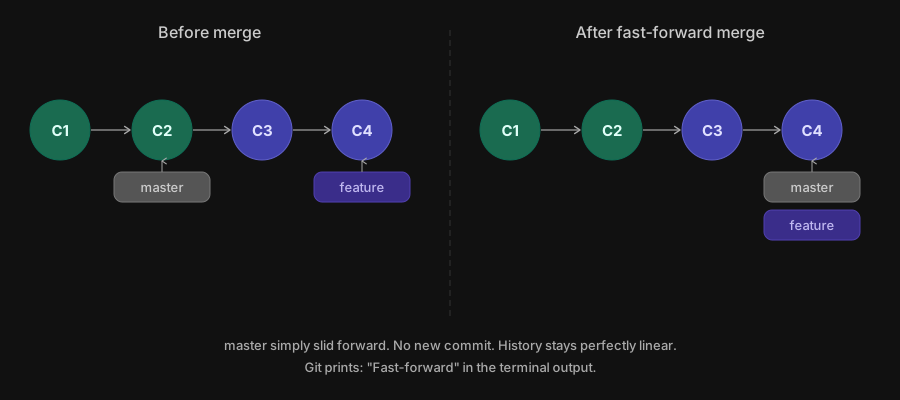
Strategy 2 — Three-Way Merge
This happens when both branches have new commits since they diverged. Git cannot simply slide a label — it must combine two different lines of work. So it creates a brand new merge commit that has two parents.
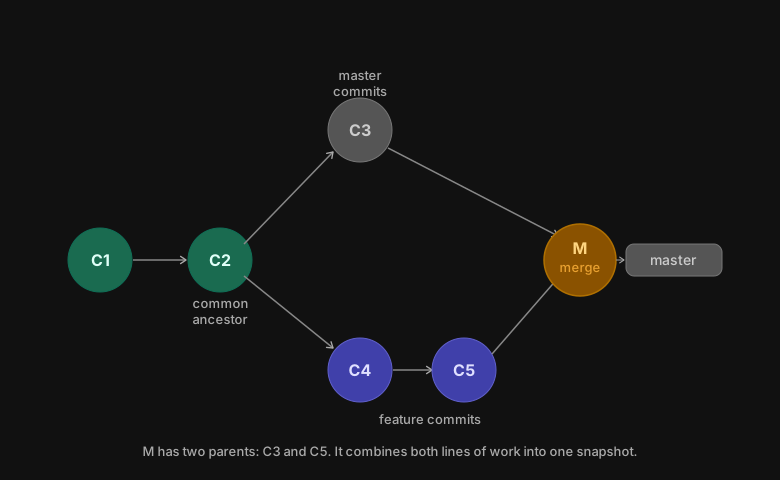 Git finds the common ancestor (C2 — the point where the two branches diverged), compares it against both branch tips, and combines the differences. If the two branches changed different files or different parts of the same file, Git merges automatically. If they changed the same lines of the same file — you get a merge conflict, which you must resolve manually.
Merge Conflicts — The Mental Model
A conflict is not an error. It’s Git saying: “Two people edited the same spot and I don’t know which version to keep — you decide.”
Git marks the conflict in the file like this:
This is the line from master
This is the line from feature/login
You edit the file to the correct final state, remove the markers, then git add and git commit to complete the merge. We’ll do deep hands-on conflict resolution in Phase 4.
Real-World Example
In projects like React or Django, the main branch is protected — nobody commits directly to it. All work happens on feature branches. When a feature is ready, a pull request is opened, reviewed, and merged. Every merge you see in a project’s history is the result of exactly this workflow.
Common Mistakes
Merging into the wrong branch. Always confirm with git branch which branch you’re currently on before running git merge.
Panicking at a conflict. Conflicts are normal and expected in collaborative work. They are not failures — they are Git asking for your judgement.
Not understanding fast-forward. Many developers are confused when they see “Fast-forward” in the output and no merge commit appears. Now you know exactly why.
✅ Exercises — Phase 1 Final
Exercise 5.1 — Perform a fast-forward merge.
git switch master
git merge feature/about-page
git log --oneline
Report back: does the output say “Fast-forward”? How many commits do you see, and where is master pointing now?
Exercise 5.2 — Create a three-way merge scenario.
# Make a new commit on master
echo "Home page" > home.txt
git add home.txt
git commit -m "Add home page"

# Create a new branch from the CURRENT master, go back one step
git switch -c feature/contact
echo "Contact page" > contact.txt
git add contact.txt
git commit -m "Add contact page"

# Switch to master and add another commit there
git switch master
echo "Footer content" >> home.txt
git add home.txt
git commit -m "Add footer to home page"

# Now merge — both branches have diverged
git merge feature/contact
git log --oneline --graph
Report back: paste the git log --oneline --graph output. Do you see a merge commit? What does the graph look like?
Exercise 5.3 — Conceptual quiz. Answer in your own words:
- What is the difference between a fast-forward and a three-way merge?
- When does a merge conflict occur?
- Why does a merge commit have two parents?
Phase 2
Lesson 1 : Starting a Repository
There are exactly two ways a repository comes into existence on your machine. You either create one from scratch, or you copy an existing one. That is git init and git clone.
git init — Creating From Scratch
When you run git init, Git creates a .git/ folder inside your current directory and begins tracking it as a repository. Your existing files are untouched. Nothing is committed yet. Git is simply saying — “I am now watching this folder.”
git init                  # initialise repo in current folder
git init my-project       # create new folder AND initialise inside it
Think of it like this — before git init, your folder is just a folder. After git init, it becomes a folder with a memory. It can now remember every change you tell it to record.
What actually gets created inside .git/:
.git/
├── HEAD          ← points to current branch (master by default)
├── config        ← repo-specific settings
├── objects/      ← where all commits, files, trees are stored
└── refs/         ← where branch and tag labels live
You already know what all of these are from Phase 1.
git clone — Copying an Existing Repository
This is how you get a copy of any existing project — whether it is someone else’s open source project or your own project from GitHub onto a new machine.
git clone <url>
git clone https://github.com/pallets/flask.git
Here is what most beginners miss — clone does three things at once:
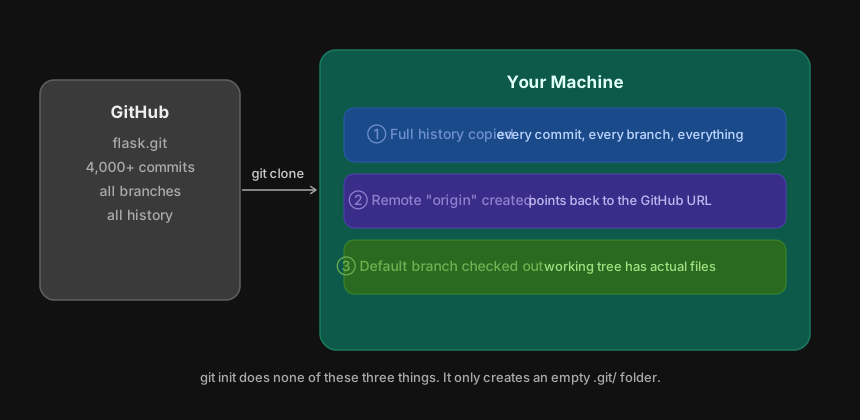
What is “origin”?
When clone creates a remote called origin, it is simply storing a nickname for the URL you cloned from. Instead of typing https://github.com/pallets/flask.git every time you want to sync, you just say origin.
You can verify it exists with:
git remote -v
Output looks like:
origin  https://github.com/pallets/flask.git (fetch)
origin  https://github.com/pallets/flask.git (push)
This is Git saying: “I know a remote called origin, and here is its address for both downloading and uploading.” We go deep on remotes in Phase 3. For now just know: clone creates it automatically, init does not.
init vs clone — When to Use Which
| Situation | Command |
|---|---|
| Starting a brand new project from scratch | git init |
| Getting a copy of any existing project | git clone <url> |
| Contributing to open source | Always git clone first |
| Your project exists on GitHub, new machine | git clone |
Common Mistakes
Running git init inside a cloned repo. Clone already initialised everything. Running init again does nothing useful and can cause confusion.
Forgetting to cd after cloning. git clone creates a new folder. You must enter it before running any other Git commands.
Running git init to get someone else’s project. Init creates an empty repo — it does not download anything from anywhere. You cannot git init your way to a copy of Flask.
Real World Grounding
Every single open source contribution in history started with git clone. When Google Summer of Code students begin working on their assigned project, their very first command is cloning the repository. Everything else flows from that one command.
✅ Exercises
Exercise 6.1 — Clone a real project and explore its history.
git clone https://github.com/pallets/flask.git
cd flask
git log --oneline | head -10
git log --oneline | wc -l
Report back: paste the 10 most recent commit lines. What is the total commit count?
Exercise 6.2 — Inspect what clone built for you.
git remote -v
git branch -a
Report back: what does git remote -v show? What do you notice about the branch names that start with remotes/origin/?
Exercise 6.3 — Conceptual. Answer in your own words:
- What three things does
git clonedo thatgit initdoes not? - You are starting a brand new project called
my-apifrom scratch with no existing remote. Which command do you use and why? - A friend says “just git init the Flask repo to get it on your machine.” What is wrong with that statement?
Lesson 2 : git status and git diff
These are the two most frequently used commands in all of Git. A professional developer runs git status instinctively — before committing, after switching branches, after pulling, constantly. It is your dashboard.
git status — Your Current Situation at a Glance
git status answers one question: what is the state of my three zones right now?
It tells you:
- Which branch you are on
- What files have changed in the working tree
- What files are staged and ready to commit
- What files Git has never seen before (untracked)
Let me show you every possible state a file can be in:
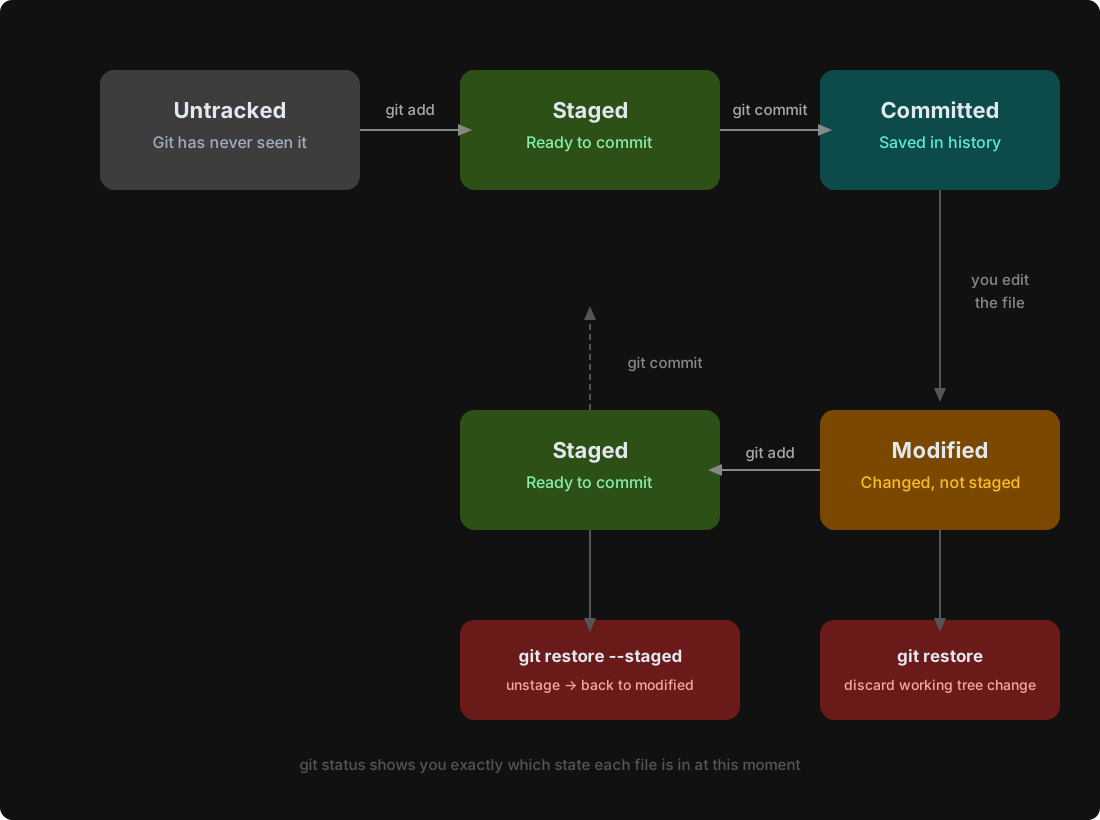
Reading git status Output
Here is a real git status output broken down piece by piece:
On branch feature/login          ← which branch HEAD is on
Your branch is up to date with 'origin/feature/login'.  ← remote sync status

Changes to be committed:         ← STAGING AREA (Zone 2)
  (use "git restore --staged <file>..." to unstage)
        modified:   auth.py      ← staged, will go into next commit

Changes not staged for commit:   ← WORKING TREE (Zone 1)
  (use "git add <file>..." to update what will be committed)
  (use "git restore <file>..." to discard changes)
        modified:   README.md    ← edited but not staged yet

Untracked files:                 ← never seen by Git
  (use "git add <file>..." to include in what will be committed)
        tests/test_auth.py       ← new file Git has never tracked
Read it top to bottom: branch → staged → unstaged → untracked. That is always the order.
git diff — Seeing Exactly What Changed
While git status tells you which files changed, git diff tells you what changed inside them — line by line.
There are three versions of diff you need to know:
git diff                    # working tree vs staging area
                            # "what have I changed but NOT yet staged?"

git diff --staged           # staging area vs last commit
                            # "what is about to go into my next commit?"

git diff HEAD               # working tree vs last commit
                            # "what has changed since my last commit, total?"
Reading a Diff
diff --git a/auth.py b/auth.py
index 3a4f2b1..9c8d4e2 100644
--- a/auth.py           ← the old version (before)
+++ b/auth.py           ← the new version (after)
@@ -12,7 +12,8 @@      ← location: old line 12, new line 12
 def login(user):
-    if user.password:           ← RED   = removed line
+    if user.password and user.active:   ← GREEN = added line
+        log_attempt(user)               ← GREEN = added line
     return authenticate(user)
The @@ line tells you the location in the file. Red lines (prefixed -) were removed. Green lines (prefixed +) were added. Lines with no prefix are context — unchanged lines shown for reference.
A Powerful Shortcut — git status -s
The -s flag gives you a compact one-line-per-file summary:
git status -s
M  auth.py       ← M in green = staged modification
 M README.md     ← M in red   = unstaged modification
?? tests/new.py  ← ?? = untracked
A  config.py     ← A  = newly staged file (added)
Left column = staging area state. Right column = working tree state. You will use this constantly once it becomes familiar.
Real World Example
In the CPython repository, before every commit contributors run git diff --staged to do a final review of exactly what they are about to commit. This is considered mandatory hygiene — you never commit blind. Maintainers can tell from a PR whether a contributor reviewed their own diff before submitting.
Common Mistakes
Running git diff and seeing nothing after staging. Once you git add a file, git diff alone shows nothing for it — because diff compares working tree to staging area, and they now match. Use git diff --staged to see staged changes.
Ignoring git status output. Beginners run commands and skip reading the output. Every line of git status output is meaningful. Train yourself to read all of it every time.
✅ Exercises
Work inside your my-first-repo from Phase 1.
Exercise 7.1 — Produce all three file states at once.
# Make a tracked file modified
echo "new line" >> hello.txt

# Stage it
git add hello.txt

# Edit it again AFTER staging
echo "another line" >> hello.txt

# Now run status
git status
Report back: paste the full git status output. Explain why hello.txt appears in TWO sections simultaneously.
Exercise 7.2 — Use all three diff variants.
git diff
git diff --staged
git diff HEAD
Report back: what does each one show? What is the difference between them in this specific situation?
Exercise 7.3 — Read a real diff. Inside the Flask repo you cloned:
cd flask
git log --oneline | head -5
git show 36e4a824
Paste the diff output and answer: which file was changed, what was removed, and what was added?
Exercise 7.4 — Conceptual quiz:
- You staged
app.pyand then edited it again. You rungit diff. What does it show — the staged version or the new edit? - What is the difference between
git diff --stagedandgit diff HEAD?
Lesson 3 : git add and git commit Done Properly
You have used both commands already. Now you learn their full power. Most developers use only 20% of what these two commands can do.
git add — Full Control Over Staging
The basic form git add <filename> stages one file. But you have much more control than that.
git add hello.txt              # stage one specific file
git add src/auth.py src/db.py  # stage multiple specific files
git add src/                   # stage everything inside a folder
git add .                      # stage ALL changes in current directory
git add *.py                   # stage all Python files
The Most Powerful Form — git add -p
This is the command that separates beginners from professionals. The -p flag (patch mode) lets you stage parts of a file — not the whole thing.
Imagine you edited auth.py and made two unrelated changes in the same file — you fixed a bug on line 12 and added a new feature on line 47. You want two separate commits: one for the bug fix, one for the feature. With git add -p you can stage only the bug fix lines, commit, then stage the feature lines, commit.
git add -p auth.py
Git will show you each changed section (called a hunk) and ask what to do:
@@ -12,4 +12,4 @@
-    if user.password:
+    if user.password and user.active:

Stage this hunk [y,n,q,a,d,s,?]?
Your options:
y— yes, stage this hunkn— no, skip this hunks— split this hunk into smaller piecesq— quit, stop asking
This is how professional contributors create clean, reviewable commits even when their working tree is messy.
git commit — Full Control Over Commits
The basic form you know:
git commit -m "Add login page"
But there are important variants:
# Open your editor for a multi-line commit message
git commit

# Stage all TRACKED modified files and commit in one step
# Does NOT stage untracked files
git commit -a -m "Fix typo in navbar"

# Amend your last commit — fix the message or add forgotten files
git commit --amend -m "Correct commit message"
git commit –amend — Fixing Your Last Commit
This is used constantly. You just committed and realised you forgot to include one file, or your message had a typo.
# Forgot to include config.py in the last commit
git add config.py
git commit --amend --no-edit    # adds config.py to last commit, keeps message

# Just fix the message
git commit --amend -m "Fix null pointer in login handler"
Critical warning: Only amend commits that have not been pushed to a remote yet. Amending rewrites the commit — it creates a new hash. If others have already pulled your commit, amending causes serious problems. This rule becomes essential in Phase 3.
Writing Commit Messages Properly — The Full Standard
You learned the basics in Lesson 3. Here is the full convention used by Linux, CPython, Git itself, and most serious open source projects:
Fix null pointer crash in login handler

When a user with no password hash attempts login, the
authenticate() function dereferenced a null pointer.
Added a guard clause to return 401 early in this case.

Fixes: #4821
Line 1 — 50 characters or less. Imperative mood. No period at end. Line 2 — blank line. Mandatory separator. Lines 3+ — explain WHY, not what. The diff shows what changed. The message explains the reasoning. Footer — reference issues, PRs, or co-authors.
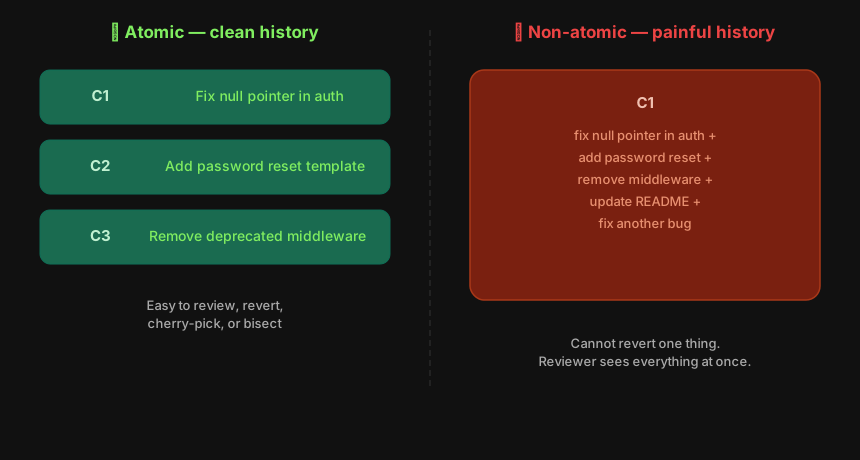
What Makes a Commit “Atomic”
In open source the word atomic means: one commit does exactly one logical thing. Not one file — one concept.
✅ Atomic commits:
"Fix off-by-one error in pagination"
"Add password reset email template"
"Remove deprecated auth middleware"

❌ Non-atomic commits:
"Fix bug and add feature and update docs"
"WIP"
"Various fixes"
Maintainers of projects like Django or the Linux kernel will ask you to split non-atomic commits before they review your PR. Learning this habit now saves you pain later.
Real World Example
The Git project itself has some of the most disciplined commit history in existence. Every commit does one thing. Every message explains why. Contributors are expected to rewrite their commits before submission until they meet this standard. When you run git log --oneline on the Git source code, every single line is a clear, precise, atomic action.
Common Mistakes
Using git add . blindly. This stages everything — including files you never intended to commit like log files, credentials, or editor config. Always run git status before and after git add ..
Amending pushed commits. Once a commit is on a remote, amending it rewrites history and causes conflicts for everyone who pulled it. Never amend public commits.
Writing vague messages under pressure. “WIP” and “fix” feel fast in the moment. Three months later when a bug is traced to that commit, they tell you nothing.
✅ Exercises
Exercise 8.1 — Practice patch staging.
cd my-first-repo

# Add two separate changes to the same file
cat >> hello.txt << 'EOF'
Bug fix line here
New feature line here
EOF

git add -p hello.txt
Stage only the first hunk using y and skip the second using n. Then run git diff and git diff --staged to confirm only one change is staged. What do you see in each diff?
Exercise 8.2 — Practice amend.
echo "forgotten file" > forgotten.txt
git add hello.txt
git commit -m "Add bug fix"

# Oops — forgot forgotten.txt
git add forgotten.txt
git commit --amend --no-edit
git show HEAD
Does git show HEAD show both files in the commit?
Exercise 8.3 — Write a proper commit message. Make a small change to any file and write a full multi-line commit message by running git commit without -m. Your message must have a subject line, a blank line, and at least two lines explaining why.
Exercise 8.4 — Conceptual quiz:
- What does
git commit -ado and what does it NOT do? - You amended a commit and then pushed it. Your teammate pulls and gets a conflict. Why did this happen?
- What does atomic mean in the context of commits?
Lesson 4: git log Mastery
Most developers only ever use git log and scroll through it. That is like using a search engine by only looking at the first result. git log is one of the most powerful investigation tools in Git — once you know its flags, you can answer almost any question about a project’s history in seconds.
The Problem with Plain git log
Plain git log gives you the full hash, author, date, and message for every commit — but it is verbose and hard to scan. On a project like Flask with 5,500 commits, it is nearly unusable without flags.
You need to shape the output to answer specific questions.
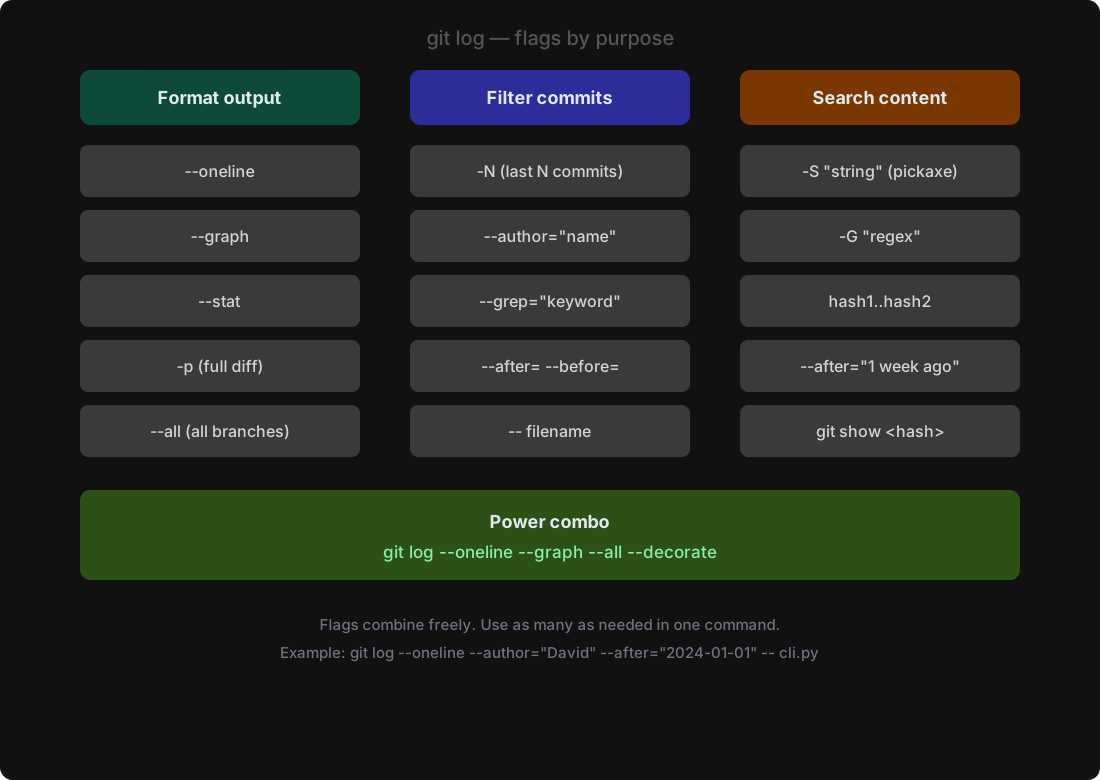
The Most Useful Flags
# One line per commit — most common daily use
git log --oneline

# Show a graph of branches and merges
git log --oneline --graph

# Show graph for ALL branches, not just current
git log --oneline --graph --all

# Limit to last N commits
git log --oneline -10

# Show commits by a specific author
git log --oneline --author="David"

# Show commits that touch a specific file
git log --oneline -- auth.py

# Show commits whose message contains a keyword
git log --oneline --grep="fix"

# Show commits between two dates
git log --oneline --after="2024-01-01" --before="2024-06-01"

# Show what files changed in each commit
git log --oneline --stat

# Show the full diff of each commit
git log --oneline -p

# Show commits in a date range on a specific file
git log --oneline --after="2024-01-01" -- auth.py
The Most Powerful Combination
This single command gives you a full picture of any repository:
git log --oneline --graph --all --decorate
--decorate adds branch and tag lables to the output. Most terminals enable this by default, but it is good to be explicit.
Reading the Graph Output
You already saw this in Exercise 5.2. Let us read it precisely.
*   8cdaac7 (HEAD -> master) Merge branch 'feature/contact'
|\
| * afcd600 (feature/contact) Add contact page
* | c2f03d2 Add footer to home page
|/
* 0c8564c Add home page
* 2be7f81 Add about page content
* a20fae9 Add hello.txt
Read it from bottom to top - that is chronological order. The * is a commit. The | lines are branch paths.
The |\ is where a branch split. The |/ is where branches rejoined at a merge commit.
Searching History Like a Detective.
This is where git log becomes genuinely powerful. In a real open source project you will use these constantly.
# Who last touched this file and when?
git log --oneline -- src/flask/cli.py

# When was this specific function introduced?
git log --oneline -S "def authenticate"

# What changed between two commits?
git log --oneline a20fae9..8cdaac7

# What changed in the last week?
git log --oneline --after="1 week ago"
The -S flag is called the pickaxe. It searches through the actual content of diffs - not just commit messages - To find when a specific string was added or removed.
This is how you find exactly which commit introduced a bug or a function.
Real World Example
When a bug is reported in Flask, a maintainer might run:
git log --online --after="2024-01-01" --grep="cli" --src/flask/cli.py
This instantly narrows 5,500 commits down to only the recent commits that touched cli.py and mentioned “cli” in the message. From there, git show <has> reveals exactly what changed.
This is how experienced contributors investigate regressions in minutes rather than hours.
Common Mistakes
Never using flags. Plain git log on a large repo is nearly useless. Always shape the output.
Forgetting -- before filenames. When filtering by filename, the – separator tells Git that what follows is a path, not a branch name. Without it, Git can get confused if a branch and a file share a name.
Not knowing about -S. The pickaxe flag is one of the most powerful tools in Git and most developers have never heard of it.
✅ Exercises
All of these are inside the Flask repo you cloned.
Exercise 9.1 — Shape the output.
cd flask
git log --oneline -10
git log --oneline --graph --all | head -20
git log --oneline --stat | head -20
Check the --stat output. What extra information does it show compared to plan --online?
Exercise 9.2 - Filter by author.
git log --oneline --author="David" | wc -l
git log --oneline --author="David" | head -5
Check : How many commits has David made? Check the five most recent.
Exercise 9.3 - Filter by file.
git log --oneline -- src/flask/cli.py | head -10
Check the output. What does this tell you about the history of that specific file?
Exercise 9.4 - Use the pickaxe.
git log --oneline -S "CertParamType"
Check the output. What commits appear and what does this tell you?
Exercise 9.5 - Conceptual quiz:
- What is the difference between
--grepand-S? - You want to find exactly when a function called
validate_userwas introduced into the codebase. Which flag do you use and why? - What does
git log --oneline main.. feature/loginshow?